Before you connect that MCP server, run these three commands
Connecting an AI assistant to a tool takes four seconds and grants a language model your permissions. Three commands, run first, tell you how the server authenticates and whether it follows the specification at all.
Webcuris Research
Security Engineering
·4 min read
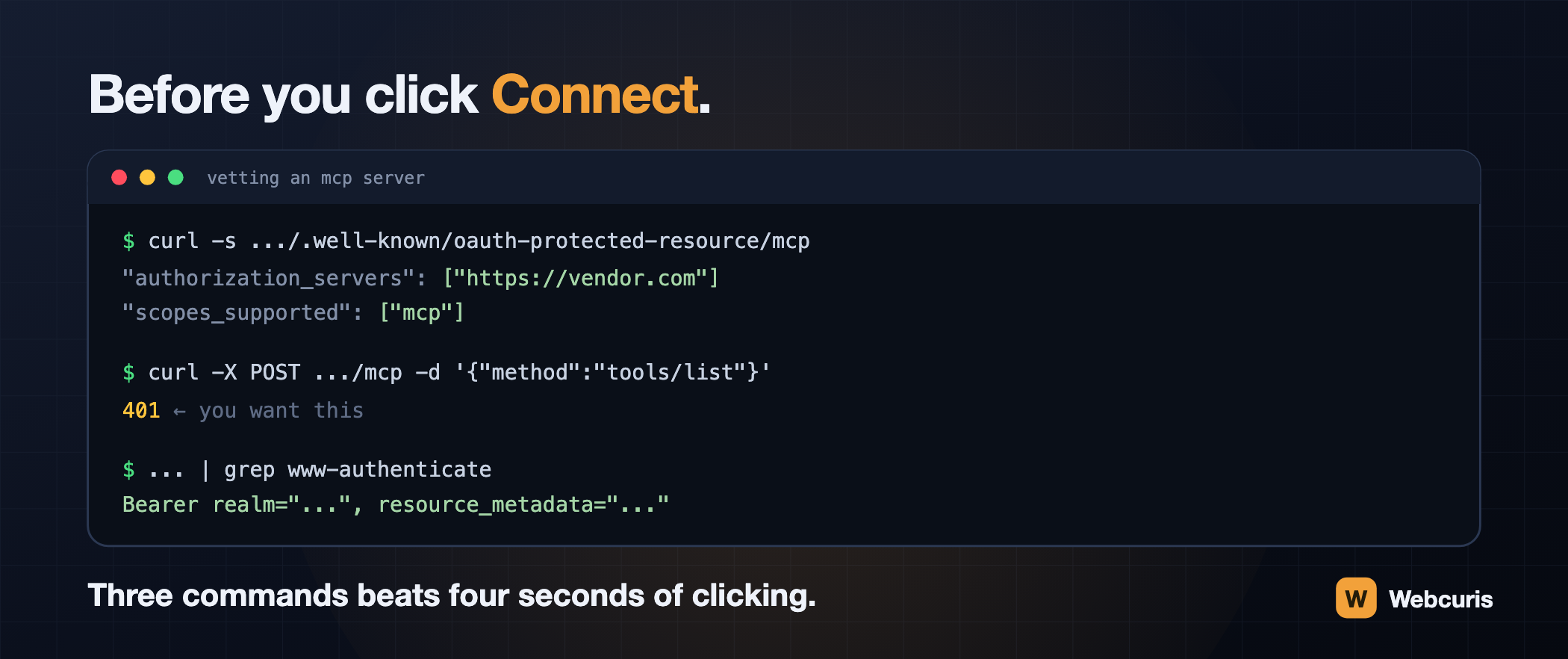
MCP servers are appearing faster than anyone can vet them. Editors offer connectors. The assistants have directories. Someone on your team will wire one into a work account this week, and the flow is designed to take about four seconds: click Connect, approve, done.
Here is what those four seconds actually decide — and three commands you can run first.
What you are granting, stated plainly
When you connect an MCP server, you are letting a language model call functions on your behalf, in your account, with your permissions, based on its interpretation of sentences typed into a chat box.
That is not an argument against doing it. It is an argument for knowing three things before you do:
- What can it do? Not what it will do — models are probabilistic and prompts get injected. What is the worst thing the exposed tools make possible?
- How is it authenticating? A pasted API key that never expires is a very different risk from a one-hour token you can revoke.
- What happens when you disconnect? If a key still works afterwards, you did not disconnect anything.
Most connector interfaces answer none of these. But a well-built MCP server publishes enough to answer the second one yourself, before you click anything.
Check 1: what is this server asking for?
Servers that implement the specification expose OAuth metadata at a well-known path, readable without any credentials:
curl -s https://example.com/.well-known/oauth-protected-resource/mcp | jqReal output from a server that does this correctly:
{
  "resource": "https://webcuris.com/mcp",
  "authorization_servers": ["https://webcuris.com"],
  "scopes_supported": ["mcp"],
  "bearer_methods_supported": ["header"],
  "resource_documentation": "https://webcuris.com/docs/mcp"
}
What you are reading for:
- `authorization_servers` — where you will actually be typing your password. If it is not the vendor's own domain, stop.
- `scopes_supported` — a short, specific list is a good sign. A scope like
full_accesstells you the model has no scoping. - `resource_documentation` — a server that links its own documentation has usually thought about being audited.
Nothing at that path is not automatically damning, but it means the server is not following the discovery specification, and you are now trusting an interface's summary rather than the server's own declaration.
Check 2: does it actually require authentication?
This one is quick and occasionally alarming:
curl -s -o /dev/null -w '%{http_code}\n' -X POST https://example.com/mcp \
  -H 'content-type: application/json' \
-d '{"jsonrpc":"2.0","id":1,"method":"tools/list"}'Check 3: does it point you at the right place?
A correct 401 does not merely refuse — it tells the client where to authenticate:
curl -sD - -o /dev/null -X POST https://example.com/mcp \
  -H 'content-type: application/json' \
  -d '{"jsonrpc":"2.0","id":1,"method":"tools/list"}' \
| grep -i www-authenticatewww-authenticate: Bearer realm="Webcuris MCP",
resource_metadata="https://webcuris.com/.well-known/oauth-protected-resource/mcp"That header is how a client discovers where to get a token without you pasting anything. Its presence means the server implements the flow rather than improvising it — and improvised authentication is where the interesting bugs live.
The one thing to read on the consent screen
When the approval page appears, most people read the application's name and click. Read one more thing: the address your browser will be returned to.
That is the field deciding where your authorization code lands. A consent screen that does not show it is asking you to approve something you cannot see, and a mismatched one is the classic way codes get stolen.
After you connect: ask it what it can do
Once connected, before using it for anything real, ask the assistant directly: "List every tool you have available from this connector, and what each one does."
Then read the list as an attacker would. For each tool, finish this sentence: the worst plausible outcome of the model calling this at the wrong moment is…
If any answer is worse than "a wasted API call", you have found the thing to think about. Tools that create, delete, send, pay or invite deserve more scrutiny than tools that read.
If you are building one
The same list, from the other side:
- Publish the metadata. Let people audit you before they trust you.
- Return 401 with `WWW-Authenticate`. It is the specification, and it is how clients find your authentication without a human pasting secrets.
- Keep the tool surface small and boring. Every administrative endpoint you expose is one sentence away from being called.
- Call the same code your interface calls. A parallel API written for assistants will reimplement ninety per cent of your authorization checks. The missing ten per cent is the incident.
- Make Disconnect mean something. Short tokens, rotation, and revocation that takes effect on the next request rather than the next cache expiry.
The short version
The MCP ecosystem is about a year old, and its conventions are being set right now by whoever ships first. That is exciting, and it means the usual safety rails — review processes, years of hardening, well-known bad actors — mostly do not exist yet.
Three commands is a low bar. It is a much higher bar than clicking Connect, which is what most people are doing.
The real output above is from the [Webcuris](/) MCP server, because it is the one we can show without picking on somebody else's. The checks work on any server — and what ours is allowed to do is [written down in full](/mcp-server).
Keep reading
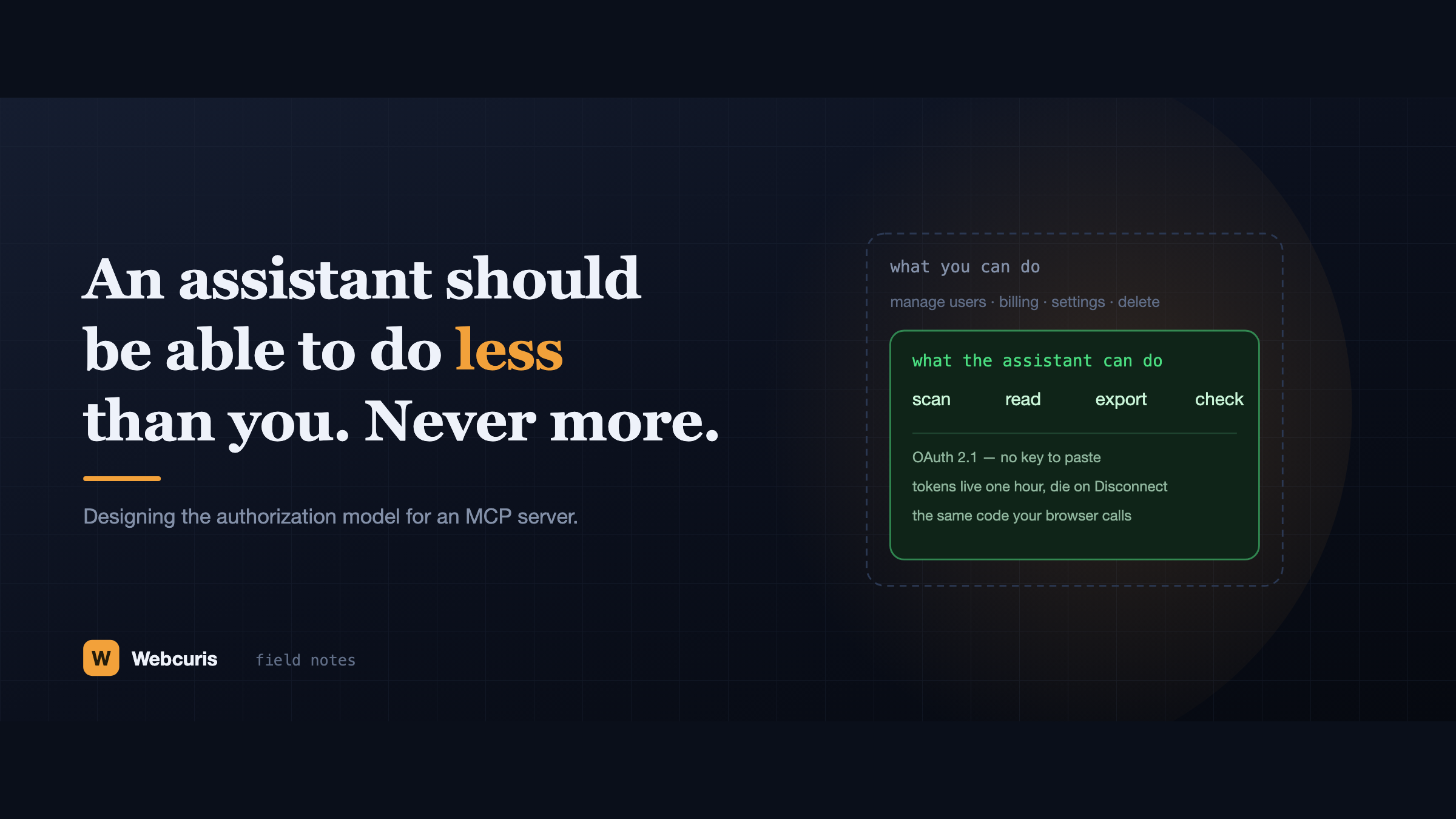
An assistant should be able to do less than you. Never more.
Everyone is connecting AI assistants to their tools by pasting an API key that never expires and isn't scoped to anything. Here is the authorization model we built instead, and the six decisions behind it.
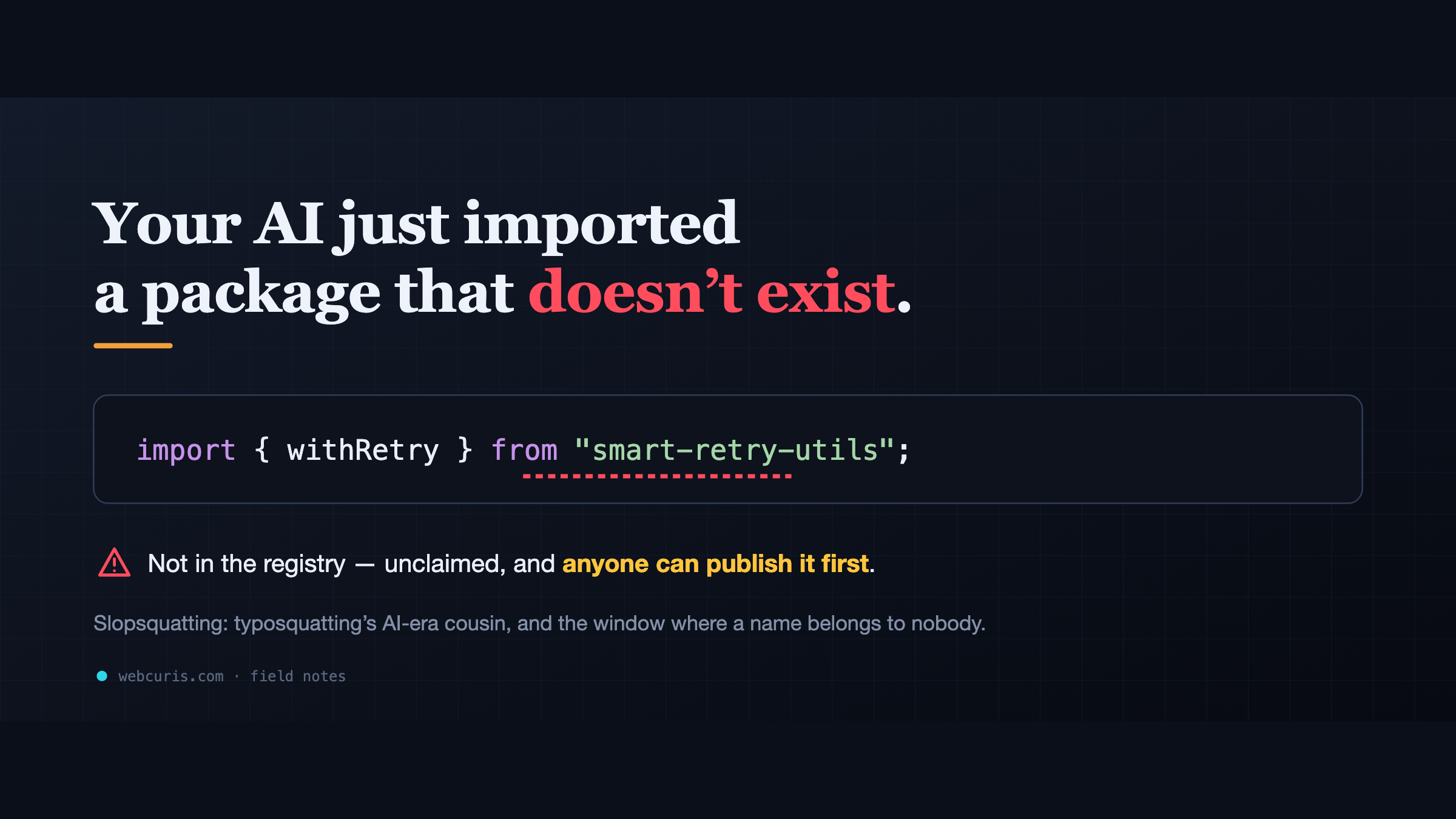
Your AI just imported a package that doesn't exist
LLM assistants keep inventing plausible package names. Unclaimed, those names are an attacker's opportunity — slopsquatting is typosquatting's AI-era cousin, and most teams have no check for it.
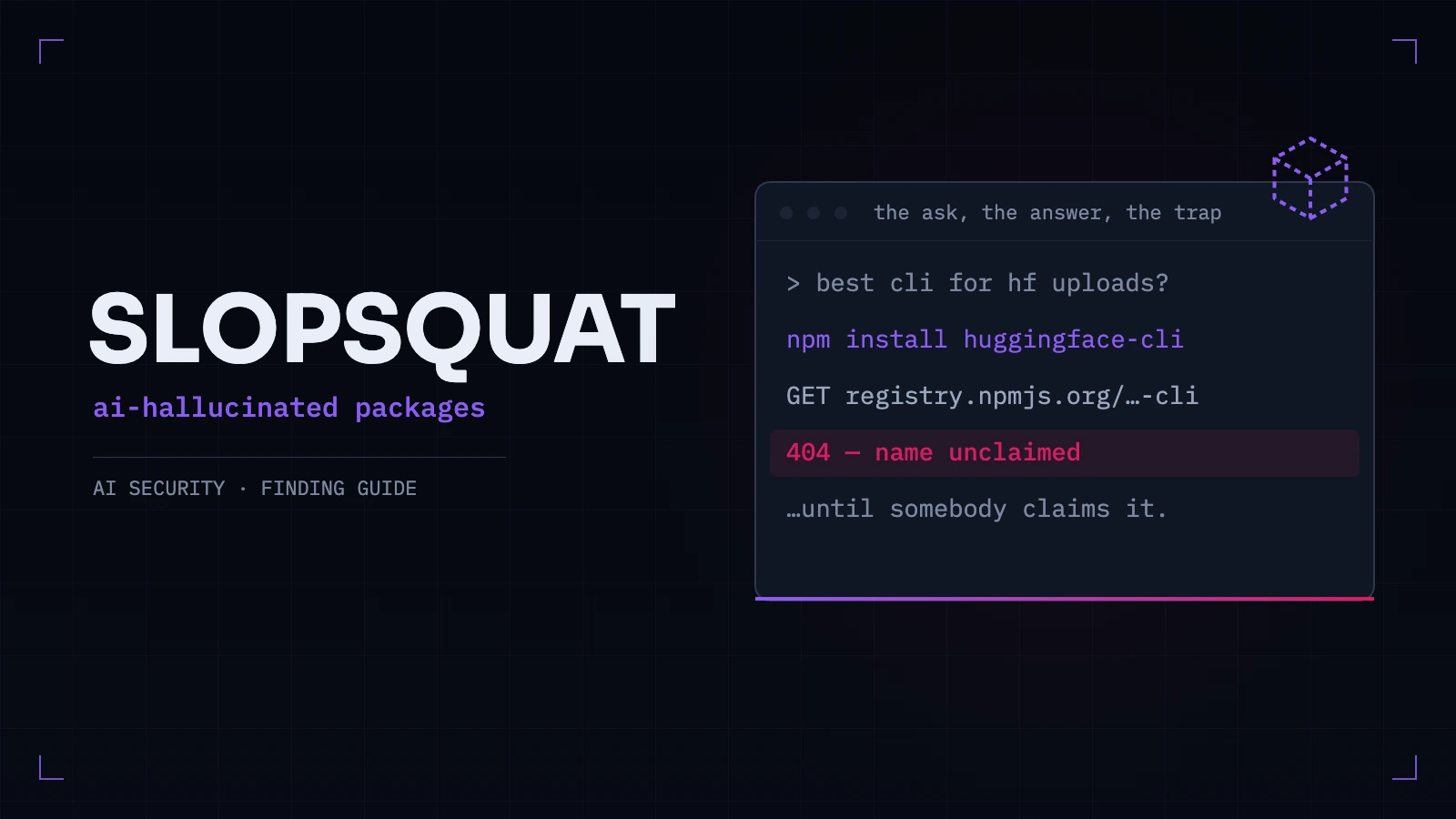
What Is Slopsquatting? How AI-Invented Packages End Up in Real Codebases
Attackers register the package names AI assistants invent. What the research measured, how to find a hallucinated dependency already sitting in your repo, and why a one-time cleanup is not a control.
Everything this article describes is what Webcuris checks continuously — scan one page free, no signup.