Your security scanner, inside the assistant you already use.
Webcuris is a Model Context Protocol server, included in the Pro and Business plans. Connect Claude, ChatGPT, Cursor or Claude Code in a minute, and ask for a scan, the open findings or an SBOM in plain words — with your plan's abilities, your ownership rules, and nothing more.
Server URL: https://webcuris.com/mcp
Connected in three steps.
Under a minute in any client. The only thing you type is the address; the sign-in happens on Webcuris, where it belongs.
01
Paste the URL
One address, the same for every client, into the client's connectors or MCP settings. No key to generate, nothing to install.
https://webcuris.com/mcp
02
Sign in and press Allow
The client opens Webcuris in your browser. You sign in here — never in the client — and see exactly what it will be able to do before you allow it.
OAuth 2.1 · PKCE · one-time code
03
Ask
“Scan our site and tell me what to fix first.” The assistant picks the tool, waits for the scan, and answers with what your plan lets it see.
Your plan · your assets · your role
Nothing new sits between the assistant and your account
The MCP endpoint is a thin door into the product you already use. What comes back is what the browser would show you, in a form a model can read.
Included in Pro and Business. The assistant gets that plan's abilities and nothing more; there is no third set of rules. Hover a box for what it does.
What you can ask for
Ten tools, each one a thing the product already does. The assistant picks the right one from your question.
Scan a website
The standard assessment: headers, CSP, TLS, DNS and mail, cookies, subdomains, third-party scripts. Passive and safe on production.
“Scan acme.example and tell me the three things to fix first.”
Scan a repository
Dependencies across 8 ecosystems, secrets in history, container and infrastructure config, code patterns, AI usage risk.
“Scan github.com/acme/api and list every hard-coded secret.”
Read findings
Every open finding across the account, or one scan in full, with severity, confidence, evidence and the fix.
“What is critical across all my assets right now?”
Check plan and quota
What the account's plan includes before trying something, and whether a CI scan would be accepted.
“Can I add another repository on this plan?”
Export an SBOM
The CycloneDX bill of materials for a repository scan, straight into the conversation or a file.
“Give me the SBOM for the last scan of the api repo.”
Authorize an agent's tool call
The runtime checkpoint for your own agents: an advisory verdict on whether a tool call fits the agent's declared tools, recorded in a tamper-evident log.
“Is my deploy agent allowed to call run_shell right now?”
Connect your assistant
Pick your client. The URL is the same for all of them; the rest is the client's own settings screen.
Claude
claude.ai in the browser, and the Claude desktop app · Settings → Connectors → Add custom connector
Server URL
https://webcuris.com/mcp- 1Open claude.ai (or the Claude desktop app) and sign in. Click your initials in the bottom-left corner, then Settings.
- 2In the left column of Settings, click Connectors. Scroll to the bottom of the list and click Add custom connector.
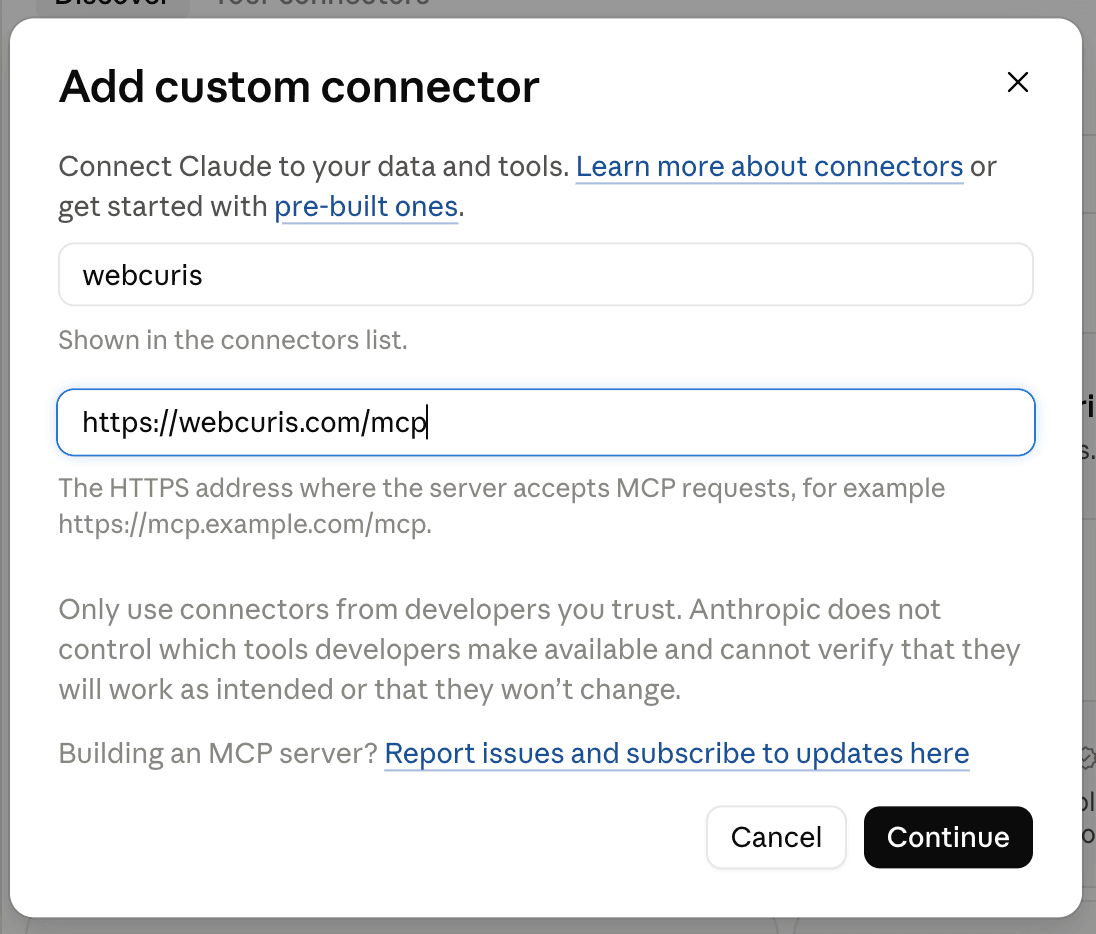
- 3A form opens with two boxes, neither of them labelled. The first is the name shown in your connectors list — type
Webcuris. The second is the server address — paste exactly this:https://webcuris.com/mcp - 4Click Continue. Webcuris now appears in the Connectors list with a Connect button next to it. Click Connect.
- 5A new browser tab opens on Webcuris. If you are not signed in, the sign-in page appears first; sign in with your usual Webcuris email and password. You then see a page titled Allow Claude to use Webcuris as you? listing what Claude will be able to do.
- 6Click Allow. The tab says the connection is complete and returns you to Claude. In the Connectors list, Webcuris now shows Connected.
- 7Start a new chat. Click the + (or the sliders icon) at the bottom of the message box, open Connectors, and make sure Webcuris is switched on for this chat.
Check that it works
- Type: “Use Webcuris to tell me which account I am signed in as and what my plan includes.” Claude asks permission to use the Webcuris tool the first time; approve it.
- The answer names your email address and your plan. That proves the connection is yours and reads the same account you see in the browser.
- Then try: “Scan example.com with Webcuris and list the three most important findings.” Claude starts a scan, waits for it, and summarises the results.
Custom connectors are available on paid Claude plans (Pro, Max, Team, Enterprise). On Team and Enterprise an owner may need to enable custom connectors under organisation settings first.
What you will see on Webcuris
A page naming the client, listing what it will be able to do, and the address your browser returns to. Allow or Cancel. Nothing is granted until you press Allow, and the connection appears under Account → Connected assistants, where one click ends it.
What happens the first time
The client discovers where to sign in, sends you here, and comes back with a one-time code. Your password is typed into Webcuris and nowhere else.
Hover a step for why it exists
Seven exchanges, once. After the last one the assistant keeps a token that lasts an hour and renews itself for thirty days — until you disconnect it.
Built to be attacked
Every line below is enforced by the server, not promised by the page. The manual lists the same guarantees with the request and response that prove each one.
Your password never leaves this site
Assistants sign in through OAuth 2.1 with PKCE: they open Webcuris in your browser, you sign in here, and they receive a short-lived token. There is no key to paste and nothing for an assistant to store that could reveal your password.
Tokens are short, bound, and revocable
Access tokens last one hour; refresh tokens rotate on every use and a reused one revokes the whole family. Every token is bound to this server's address, is stored only as a hash, and dies the moment you press Disconnect.
The same rules as the browser
Tools call the same routes the web app calls, in the same process. Plan gates, quotas, domain ownership, organization scope, the refusal to scan private networks and the audit log all apply unchanged. There is no second way in.
Nothing administrative is exposed
Ten tools: scan, read, export, check. No user management, no billing, no settings, no deletion. An assistant with your connection can do less than you can — never more.
Consent names the client and the return address
Every client registers itself before it may ask, and the consent page shows the client's name and the exact address your browser will be sent back to. A request with a mismatched address, a missing code challenge or the wrong scope is refused before you see it.
Limits that assume hostility
Requests are capped per user and per minute, bodies are capped in size, batches are refused, and authorization codes are single-use for ten minutes. A stolen code that is replayed revokes what it was exchanged for.
Found a way through? Our responsible disclosure policy says how to tell us and what to expect.
Questions people ask before connecting
Short answers. The manual page has the long ones, including every tool's inputs and what each returns.
Does connecting an assistant change what my plan includes?
No. An assistant acts as you, with your plan's abilities: Pro's on Pro, Business's on Business. Asking for something the plan does not include returns the same explanation the web app shows, with the plan that adds it. It never gets more than you have.
Is the MCP server available on the Free plan?
No. The MCP server is part of the Pro and Business plans. A Free account that tries to connect is told so on the approval page, and nothing is granted; a connection made on a paid plan stops working the moment the plan lapses, on the very next request. Upgrading takes a minute from your account page, and the assistant connects the same way afterwards.
Which assistants work?
Anything that speaks MCP over Streamable HTTP with OAuth: Claude (web and desktop), Claude Code, ChatGPT, Cursor, VS Code with Copilot, Windsurf, Gemini CLI and Codex among others. Clients that can only send a fixed header can use an API key on plans that include one.
Can an assistant see other people's data?
No. Every tool resolves the connection to your account and applies the same ownership and organization checks as the web app. A scan you cannot open in the browser is a scan the assistant cannot read.
How do I disconnect?
Account → Connected assistants lists every connection with the client's name, when it was granted and when it was last used. Disconnect revokes it immediately; the next request from that assistant is refused and it will ask you to sign in again.
Will an assistant start scans I did not ask for?
Only when you ask it to, but a scan started by an assistant counts like any other scan. Deep scans and repository scans consume the same quotas as in the browser, and an assistant cannot scan a domain you have not verified any more than you can.
Keep reading
Where most people go next
Ask your assistant to scan something
Included in the Pro and Business plans. Paste the URL into your client, sign in once, and ask.